RevUp Sales Assistant
AI-Powered Real-Time Sales Coaching
Close more deals with intelligent AI coaching during your sales calls. Detect objections, identify buying signals, and get tactical suggestions in real-time.
Loading latest version...
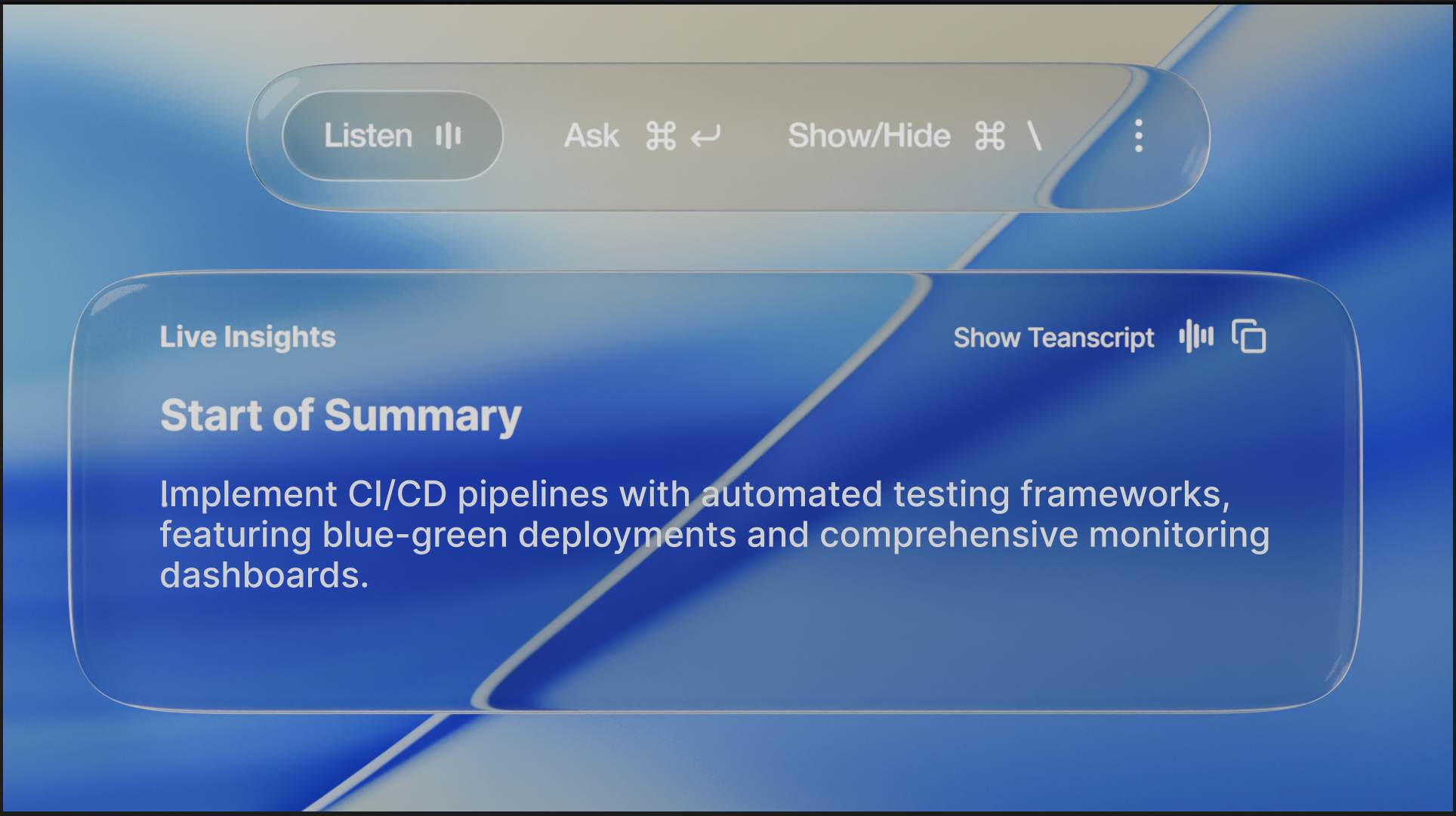
Real-time coaching that floats above your video calls - invisible to screen sharing
Features
Real-Time Transcription
Automatically transcribes your sales calls with high accuracy. Review conversations, search for key moments, and never miss important details.
Objection Detection
Instantly identifies 20+ objection types including price concerns, timing issues, and competitor mentions. Get tactical response suggestions in real-time.
Buying Signal Recognition
Detects positive indicators and commitment signals. Know exactly when your prospect is ready to close and capitalize on the opportunity.
RevUp 5-Stage Methodology
Guided sales framework: Rapport, Discovery, Value, Objections, Close. Track your progress and get stage-specific coaching throughout the call.
RevUp Score & Analytics
Get a performance score after each call. Track talk ratio, question effectiveness, objection handling, and improvement trends over time.
Works With Any Platform
Compatible with Zoom, Microsoft Teams, Google Meet, and any video conferencing app. Invisible to screen recordings - your secret weapon.
How It Works
Start Your Call
Launch RevUp before your sales call. It sits invisibly above your video conferencing app.
Click Listen
RevUp captures audio and provides real-time transcription and AI analysis throughout your conversation.
Get Live Coaching
Receive instant suggestions when objections arise, buying signals appear, or opportunities emerge.
Review & Improve
After the call, review your RevUp Score, analyze the transcript, and track your improvement over time.
Frequently Asked Questions
Is RevUp visible during screen sharing?
No. RevUp uses special window properties that make it invisible to screen recordings and screen sharing. Your prospects will never see it.
What video platforms does it work with?
RevUp works with any video conferencing platform including Zoom, Microsoft Teams, Google Meet, Webex, and more. It captures system audio, so it's platform-agnostic.
How accurate is the transcription?
RevUp uses advanced speech-to-text technology (Deepgram) that provides high-accuracy real-time transcription, even with multiple speakers and technical terminology.
Is my data secure?
Yes. Transcripts are stored locally on your device by default. You control your data. Optional cloud sync uses encrypted storage.
Why does macOS show a security warning?
RevUp is currently unsigned (not notarized by Apple). This is common for open-source apps. Right-click and select "Open" to bypass the warning on first launch.
What AI providers does RevUp support?
RevUp supports multiple AI providers including OpenAI, Anthropic (Claude), Google Gemini, and local models via Ollama. Bring your own API keys.
Installation Guide
RevUp is currently unsigned. Your operating system may show a security warning the first time you run it. This is normal for apps distributed outside official app stores.
macOS Installation
- Download the
.dmgfile using the button above - Open the DMG and drag RevUp to your Applications folder
-
First launch only: Right-click the app and select "Open"
When macOS shows "cannot be verified", click Cancel, then right-click the app > Open > Open
- Click "Open" in the security dialog that appears
- Grant microphone and audio permissions when prompted
Tip: After the first launch, RevUp will open normally without these extra steps.
Windows Installation
- Download the
.exeinstaller using the button above -
SmartScreen warning: Click "More info" then "Run anyway"
Windows SmartScreen protects your PC > More info > Run anyway
- Follow the installation wizard
- Launch RevUp from the Start Menu or Desktop shortcut
- Grant audio permissions when prompted
Tip: The SmartScreen warning appears because the app isn't code-signed yet. This doesn't affect functionality.
Troubleshooting
Audio not being captured
Ensure you've granted audio/microphone permissions in System Preferences (macOS) or Settings (Windows). Restart RevUp after granting permissions.
App won't open on macOS
Right-click the app and select "Open" instead of double-clicking. This bypasses Gatekeeper for unsigned apps.
Transcription not working
Check that you've configured an API key in Settings. RevUp requires a Deepgram API key for transcription.
High CPU usage
This can occur during active transcription. Close other resource-intensive apps if needed. CPU usage returns to normal when not listening.
Ready to Close More Deals?
Download RevUp and transform your sales calls with AI-powered coaching.